Chaturai User guide - How to use Chaturai
This guide walks you through everything the Chaturai extension can do, step by step.
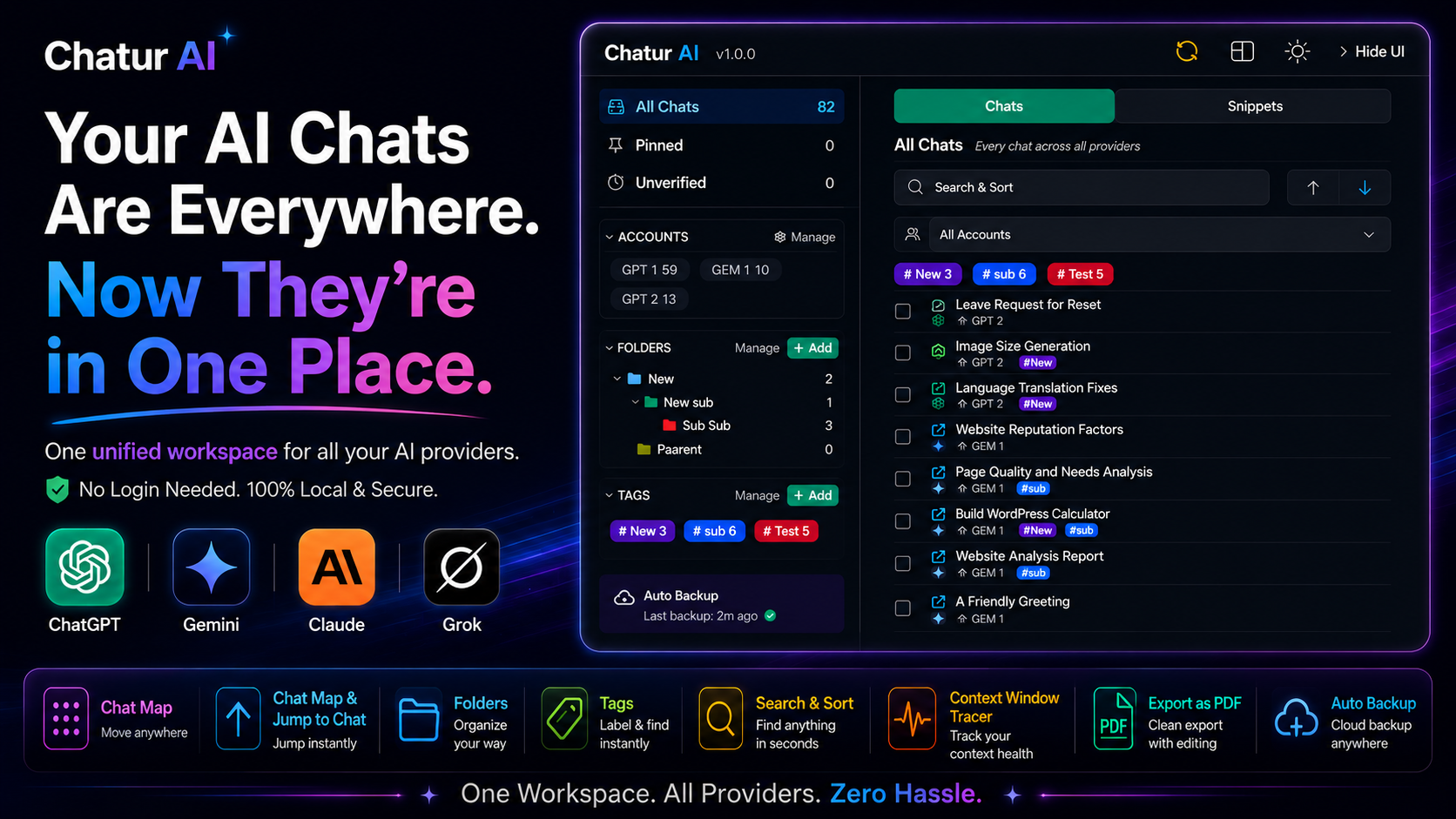
# ChaturAI — Your Guide to a More Organised AI Life
> Open ChatGPT. Open Gemini. Open Grok. Open Claude. Suddenly you have hundreds of conversations and zero way to find anything. **ChaturAI fixes that.** This guide walks you through everything the extension can do, step by step.
---
## Getting Started — Your First 60 Seconds
After installing ChaturAI, visit any of your AI platforms — **ChatGPT, Gemini, Grok, or Claude**. The extension wakes up quietly and does something in the background: it reads your existing chat list from the page and brings it into the sidebar.
You’ll notice a panel appearing on the right side (or left — your choice!) of the page. That’s **ChaturAI’s sidebar**, and it’s the control centre for everything.
**The first time you open a platform**, ChaturAI records which account it’s seeing. Silently, with no pop-ups, it assigns a label — `GPT 1`, `GEM 1`, etc. — to your session. That label is the foundation for keeping your accounts separate if you ever switch between them.
---
## The Sidebar at a Glance
The sidebar is split into two panels:
| Left Panel | Right Panel |
|---|---|
| Navigation: folders, tags, filters | Your chat list |
At the very top sits the **header bar**, with a handful of small but powerful controls:
- **☁ Sync icon** — shows whether your data is syncing to the cloud (Pro/Yearly users see this animate when a sync is in progress)
- **⇄ Position toggle** — flips the sidebar between left and right side of the screen
- **☀/🌙 Theme toggle** — switches between light and dark mode, instantly
- **Hide UI** — collapses the sidebar out of the way (a small tab stays on the edge so you can bring it back)
The sidebar remembers all your preferences — position, width, theme — across sessions and even across devices (Pro).
---
## Step 1 — Organise Your Chats with Folders 📁
Folders are the main way to give your chats a home. Think of them like the folders on your computer — except colour-coded and with up to **3 levels deep** (a folder inside a folder inside a folder).
### Creating a folder
-
In the sidebar’s left panel, click **”+ Add Folder”** (or open Manage Folders from the footer).
-
Type a name — you’ll see it appear in your chosen colour as you type.
-
Pick a **colour** from the colour picker. This colour appears throughout the sidebar to make folders instantly recognisable.
-
Optionally, choose a **parent folder** if you want this to live inside an existing one (sub-folders go up to 3 levels).
-
Hit **Create** (or press Enter).
### Putting chats in folders
Two ways:
- **Drag and drop** — drag any chat card from the right panel and drop it onto a folder in the left panel.
- **Multi-select then Move** — tick the checkboxes on several chats, then click **Move** in the action bar that appears at the bottom.
### Managing your folders
Click **Manage Folders** in the footer. Here you can:
- **Edit** a folder’s name, colour, or parent location
- **Change colour inline** — click the palette icon next to any folder for an instant colour picker
- **Delete** one or many — a warning tells you exactly how many chats and sub-folders would be affected before you confirm
- **Sort** the list by name, most-used, or colour
> **Free plan:** up to 3 folders. **Pro/Yearly:** up to 50 folders.
---
## Step 2 — Label Everything with Tags 🏷️
Tags are flexible labels — a chat can have as many tags as you want. Use them for context that doesn’t fit neatly into a folder: `important`, `follow-up`, `client-name`, `research`, anything.
### Creating and applying tags
-
Select one or more chats using the checkboxes.
-
Click **Tag** in the action bar at the bottom of the sidebar.
-
In the **Assign Tags** modal, click the tag(s) you want. Tags that are already applied appear highlighted.
-
You can also **create a new tag** right there — type a name, pick a colour, and it’s ready to use immediately.
### Managing your tags
Head to **Manage Tags** (footer menu). Similar to folders: rename, recolour, delete, or bulk-delete tags. Deleting a tag removes it from all chats that had it, but the chats themselves stay put.
> **Free plan:** up to 3 tags. **Pro/Yearly:** up to 60 tags.
---
## Step 3 — Stop Retyping with Snippets ⚡
Snippets are saved text templates you can fire off inside any AI chat with a quick shortcut. Perfect for things you type constantly: a prompt you always start with, a meeting summary template, a debugging checklist, your standard email draft request.
### Creating a snippet
-
Open the **Snippets** tab in the left panel, then click **+** (or use the footer menu).
-
Give it a **name** (for your reference) and a **slash command** — for example, `meeting-notes`. The command auto-formats to lowercase with hyphens.
-
Write your **content** — this is what gets pasted into the AI chat when you trigger the snippet.
-
A live **preview** appears below as you type.
-
Hit **Create Snippet**.
### Using a snippet
Inside any supported AI chat (ChatGPT, Gemini, Grok, Claude), type `/meeting-notes` or `.meeting-notes` and the full content appears automatically — ready to send or tweak.
> **Free plan:** up to 3 snippets. **Pro/Yearly:** up to 200 snippets.
---
## Step 4 — Bulk Actions: Do More in Less Time
ChaturAI makes it easy to manage many chats at once.
-
**Tick the checkboxes** on the chat cards you want to act on. A floating **action bar** appears at the bottom of the sidebar.
-
Choose your action:
- **Pin / Unpin** — pinned chats stick to the top of your chat list, always visible
- **Move** — send the selected chats to a folder
- **Tag** — apply or remove tags from all selected chats at once
- **Delete** — remove the selected chats from your library (with a confirmation prompt)
You can select all visible chats at once using the master checkbox in the chat list header.
---
## Step 5 — Find Anything with Search & Filters
**Search bar** (top of the right panel): type any part of a chat title. Results update as you type.
**Filters** (left panel):
- **All Chats** — the full library
- **Pinned** — only your pinned conversations
- **Archive** — chats you’ve marked as archived (hidden from the main list, but not deleted)
- **Folder view** — click any folder to see only the chats inside it
- **Tag filter** — click any tag to filter by it
- **Account filter** *(if you have multiple AI accounts)* — switch between `GPT 1`, `GPT 2`, etc.
---
## Handling Multiple AI Accounts
If you use more than one ChatGPT account (e.g., personal and work), ChaturAI detects the switch automatically.
When you log into a different account, ChaturAI notices unfamiliar chats and asks:
> **“Is this a new account, or the same one?”**
- Choose **“Separate account”** → ChaturAI creates a new label (`GPT 2`) and keeps those chats in their own stream.
- Choose **“Merge into existing”** → all chats are combined under your existing account.
From then on, you can switch between account views using the account filter in the left panel.
> **Free plan:** 1 account per platform. **Pro/Yearly:** 2 accounts per platform.
---
## Export Chats to PDF 📄
Turn any conversation into a clean, professional PDF document. The PDF button lives inside the **context pill** — the floating bar at the bottom of your AI chat page.
### How to export
-
Open a conversation on **ChatGPT** or **Claude**.
-
Look for the small **download icon** in the context pill at the bottom of the page.
-
Click it — a PDF preview overlay opens in a new tab.
-
Review the preview, edit the document title if you like.
-
Click **Download PDF** and choose your save location.
### What’s included
- Full conversation with user/assistant labels
- Optional ChaturAI branding footer (toggle on/off)
- Clean typography and layout
### Free vs Pro
- **Free:** 5 PDF exports lifetime. Exports include a watermark. An upgrade banner appears after the limit.
- **Pro / Yearly:** Unlimited exports. Watermark-free. Optional branding footer toggle.
> **Tip:** If the export page shows “Couldn’t read this chat,” open the conversation in a fresh tab and try again.
---
## Chat Map & Jump to Chat 🗺️
Long conversations are hard to navigate. The **context pill** at the bottom of your AI chat page includes a **chat map** that is hidden by default — click the **up arrow** on the pill to expand it and reveal a scrollable mini-map of the entire conversation.
### How to use
-
Open any conversation on **ChatGPT, Gemini, Grok, or Claude**.
-
The context pill sits at the bottom of the page. Click the **up arrow** to expand it.
-
Browse the scrollable message list — user and assistant bubbles are clearly labelled.
-
Click any message to jump directly to that point in the conversation.
### Free vs Pro
- **Free:** Expand the map to preview the last 10 messages. A lock banner shows how many messages are hidden.
- **Pro / Yearly:** Full conversation map with unlimited messages and one-click jump-to-section.
---
## Context Window Pill 📊
The frosted-glass **context pill** overlay shows your current context window usage as a percentage — so you always know how close you are to the model’s limit before you hit it.
### Features
- **Real-time usage** — LED-style dots + percentage counter
- **In-page text search** — find specific words inside the current conversation
- **Draggable** — move it anywhere on the screen so it doesn’t cover what you’re reading
- **Works across all providers** — ChatGPT, Gemini, Grok, Claude
-**Chat map and Jump to chat** - ChatGPT, Gemini, Grok, Claude
-**Chat PDF export** - Chatgpt, Claude
---
## Cloud Backup & Sync — Pro/Yearly ☁
Once you’re on a paid plan and signed in, **auto backup** runs every ten minutes. Every folder, tag, snippet, and chat organisation change is uploaded to the cloud. When you open ChaturAI on another device, everything is already there.
### What syncs?
- Folders, tags, snippets
- Chat organisation (which folder a chat is in, which tags it has, pin/archive state)
- Account fingerprints (your multi-account setup)
### What doesn’t sync?
- The actual AI conversation content (ChaturAI never reads that)
- Settings like theme and sidebar width that are already synced via your browser’s own Google account sync
### Checking sync status
Open the **Backup & Sync** panel (from the header cloud icon or footer menu). You’ll see:
- **Last synced** timestamp
- How many folders, tags, chats, and snippets are in your library
- **Pending changes** count (if any are waiting to upload)
- A **Sync Now** button for a manual push, if you don’t want to wait
> **Pro:** up to 4 devices, 10 manual syncs/day. **Yearly:** up to 4 devices, 10 manual syncs/day.
---
## Plans, Pricing & Billing
### Free Plan
Free forever, no account required:
- 3 folders, 3 tags, 3 snippets
- 1 linked AI account per platform
- 5 PDF exports (lifetime, watermarked)
- Chat map preview (last 10 messages)
- All 4 AI platforms supported
- Full search, sort, pin, drag & drop
- Local export & import backup
- Dark and light mode
### Pro Plan (Monthly)
- 50 folders, 60 tags, 200 snippets
- 2 linked AI accounts per platform
- Unlimited PDF exports, watermark-free
- Full chat map
- Context window pill
- Referral bonus days
- Cloud sync across 4 devices (up to 20,000 chats)
- 10 manual “Sync Now” per day
- Priority support
### Yearly Plan
Everything in Pro, plus higher billing savings:
- 2 linked AI accounts per platform (same as Pro)
- 10 manual “Sync Now” per day (same as Pro)
### Cancellation & Refunds
**Manage Plan** — Click the **Manage Plan** button in the extension popup to open your Lemon Squeezy customer portal. Cancel anytime; your premium access continues until the end of your billing period. We do not refund the unused portion of a billing period after cancellation.
**Refund window:**
- Monthly plans: **7 days** from purchase
- Yearly plans: **30 days** from purchase
A refund within the window cancels your subscription and ends premium access **immediately**. After the window, payments are non-refundable, though you may still cancel at any time to stop future charges.
**How to request:** Email **support@tooltera.com** within the applicable window, **from the email address you used to sign up** (so we can verify ownership). Approved refunds are issued to your original payment method via Lemon Squeezy and may take several business days to appear. Nothing in this policy limits any statutory refund rights you may have under applicable consumer protection law.
### Referral Program
Share ChaturAI with friends and earn bonus premium days.
**How it works:** When someone you refer signs up and starts a **genuine, paid, active** subscription, you earn **Referral Bonus** days added to your premium access.
**Key rules:**
- **One bonus per referred user** — self-referrals, free sign-ups, and trials do not qualify.
- **Cap:** You can hold at most **90 days** of bonus time at any once. Referrals beyond the cap earn nothing until your balance drops below it.
- **No cash value** — bonus days are for premium access only and cannot be redeemed for cash or transferred.
- **Claw-back:** If a referred payment is refunded, charged back, or reversed, the associated bonus days may be removed from your account.
---
## The Extension Popup (toolbar icon)
Click the **ChaturAI icon** in your Chrome toolbar to open the popup — a quick-access panel for:
- **Signing in or creating an account** (required for cloud sync)
- **Plan status** — see your current plan, Manage Plan button, and link to upgrade
- **Settings**: sidebar position, theme, sidebar visibility, and more
- **Provider toggles** — enable or disable ChaturAI for each AI platform
---
## Customising the Sidebar
ChaturAI’s sidebar is built to stay out of your way:
| Control | How to use |
|---|---|
| **Resize the sidebar** | Drag the thin handle on the sidebar’s outer edge |
| **Resize the internal panels** | Drag the divider between the left and right panels |
| **Move to left/right** | Click the position icon in the header |
| **Collapse it** | Click “Hide UI” — a small tab stays visible to restore it |
| **Dark / Light mode** | Click the sun/moon icon in the header |
All of these preferences are remembered automatically.
---
## Plan Comparison
| Feature | Free | Pro | Yearly |
|---|---|---|---|
| Folders | 3 | 50 | 50 |
| Tags | 3 | 60 | 60 |
| Snippets | 3 | 200 | 200 |
| Accounts per AI platform | 1 | 2 | 2 |
| PDF exports | 5 (watermarked) | Unlimited | Unlimited |
| Chat map | Last 10 msgs | Full | Full |
| Context window pill | ✓ | ✓ | ✓ |
| Cloud sync (Pro/Yearly) | ✗ | ✓ Auto | ✓ Auto |
| Max chats synced to cloud | — | 20,000 | 20,000 |
| Synced devices | — | 4 | 4 |
| Manual “Sync Now” per day | — | 10 | 10 |
| Referral bonus days | ✗ | ✓ | ✓ |
---
## A Few Good Things to Know
- **ChaturAI never reads your chat messages.** It only sees chat titles and IDs — nothing you write to your AI assistant is ever accessed.
- **Works offline.** Your folders, tags, and snippets are stored locally in your browser. You can organise chats without an internet connection. Cloud sync just kicks in when you’re back online.
- **Chats you delete on the AI platform don’t disappear.** They’ll appear in your sidebar with a small warning indicator (inaccessible). You can delete them from ChaturAI manually whenever you’re ready.
- **Your data is yours.** Free-plan users’ data never leaves their browser. Pro users’ cloud data is secured per-account — no one else can see it.
---
## Support
Need help? Reach out:
- **Email:** support@tooltera.com
- **Website:** [tooltera.com](https://tooltera.com)
- **Report a bug:** Open the [Bug Report form](https://docs.google.com/forms/d/e/1FAIpQLSfjGJmtB_crAQyJCqsjB2ndi6IRDLc11r8Z5rZllrUy_JoZaw/viewform) or use the **Copy Debug Log** button in the popup.
- **Feature requests:** Open the [Feature Request form](https://docs.google.com/forms/d/e/1FAIpQLSfjGJmtB_crAQyJCqsjB2ndi6IRDLc11r8Z5rZllrUy_JoZaw/viewform) — we read every submission.
---
*Questions or feedback? Visit [tooltera.com](https://tooltera.com)\*
Last updated: