ChatGPT Prompt Library, Prompt Manager & Slash Commands: How to Save Prompts You'll Actually Reuse
Most prompt libraries die in a notes app nobody reopens. Here's how a ChatGPT prompt manager with slash commands keeps your best prompts one keystroke away instead.
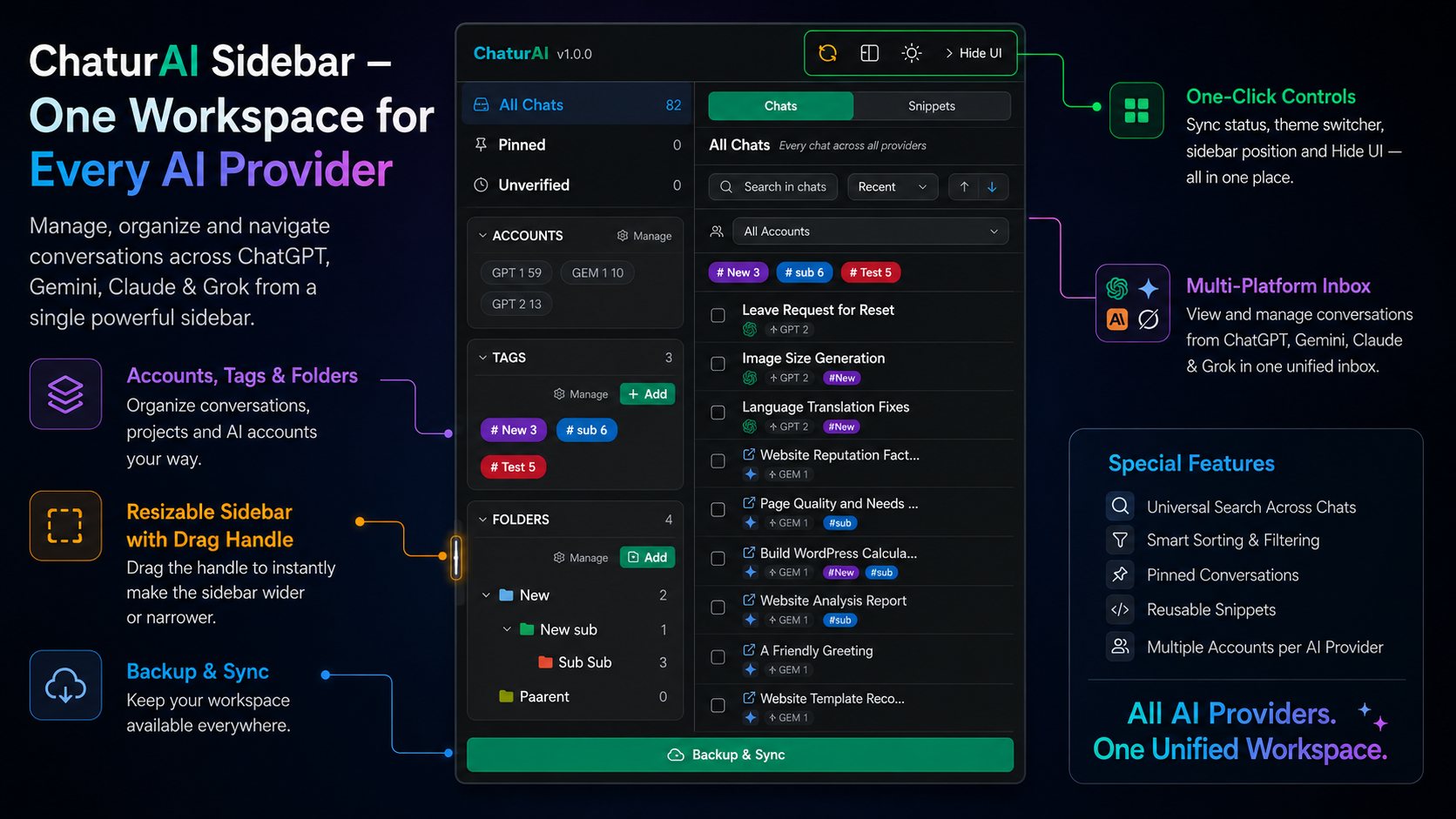
Most people who do serious work with ChatGPT have tried to build a ChatGPT prompt library — a notes doc, a spreadsheet, a folder of text files with their best prompts saved for later. Almost all of them die within a couple of weeks, not because the prompts were bad, but because reusing one meant more effort than just retyping something close enough. This post covers why that happens and how a ChatGPT prompt manager built around slash commands fixes it.
Why Notes-App Prompt Libraries Don’t Survive Real Use
The pattern is always the same. You write a genuinely good prompt — a specific way of asking for a code review, a structure for summarizing a document, a persona the model handles well — and save it somewhere to reuse. The first reuse works fine. By the fifth or sixth time, finding the file, opening it, copying the right block, switching back to ChatGPT, and pasting it in costs more than the prompt saves. Eventually it’s faster to retype an approximation from memory, which is slightly worse than the original, and the library quietly stops getting opened. The problem was never the prompts — it’s that where you store them and where you need them are two different apps.
How to Save ChatGPT Prompts So You’ll Actually Reuse Them
A saved prompt needs to be retrievable in the same place, in less time, than typing a rough version from memory. That rules out most notes-app setups by design — switching apps and copy-pasting is almost always slower than just typing. It leaves one approach that actually clears the bar: a prompt manager built into the chat interface itself, triggered without leaving the page.
Chaturai’s snippets are exactly that. Save a prompt once, give it a name and a slash command, and typing that command anywhere in ChatGPT, Claude, Gemini, or Grok inserts the full prompt instantly. No app switching, no copy-paste — the step that kills most prompt libraries doesn’t exist.
Setting Up Your First Snippet
- Open the Chaturai sidebar on ChatGPT, Claude, Gemini, or Grok — same sidebar regardless of platform.
- Create a new snippet with a short name and a slash command —
/reviewfor a code review prompt,/brieffor a one-paragraph summary request. - Write or paste the full prompt as the snippet’s content — this is exactly what gets inserted.
- Save it. From then on, typing
/review(or whichever command you chose) in any chat box on any of the four platforms inserts the complete prompt.
Free plan: 5 snippets — enough to prove the approach before deciding to go further. Pro: unlimited.
What’s Actually Worth Saving as a Snippet
Not every prompt earns a permanent slot. The ones worth saving share a pattern: you’ve used a close variation more than twice, and getting the phrasing exactly right mattered to the output quality.
- Structural instructions — “summarize this in exactly three bullet points, each under 20 words,” or any specific output format you always want.
- Persona or role prompts — a way of asking the model for a particular voice or expertise that took some trial and error to phrase well.
- Review and critique templates — a standard way you ask for code review, writing feedback, or analysis, where consistent phrasing makes outputs easier to compare.
- Recurring project context — a snippet that re-establishes an ongoing project’s background so you’re not re-explaining it from scratch in a new chat.
A useful test: if you typed this prompt today, would you type something close to it again next week? If yes, save it as a snippet. If it was a one-off, it isn’t.
ChatGPT Prompt Shortcuts: Slash Commands That Work Everywhere
Because the same slash command works on ChatGPT, Claude, Gemini, and Grok, a snippet library built once doesn’t need rebuilding per platform. Draft on ChatGPT, reason through something on Claude — the same /brief or /review shortcut works identically on both, because the prompt is the reusable asset, independent of which model you’re talking to.
Keeping a Prompt Snippets Library From Becoming Its Own Mess
A small library with clear names stays useful indefinitely. A large one with vague names (“prompt 1,” “test,” “backup”) turns into the same failure mode as the notes-app approach, one layer in. Two habits fix that:
- Name snippets by what they do, not when you made them.
/review-strictis something you’ll remember how to use in three months;/snippet3isn’t. - Prune rather than accumulate. If a snippet hasn’t been triggered in a long time and doesn’t map to work you still do, delete it. Eight snippets you actually reach for beats forty you have to scroll past.
Where This Fits With the Rest of Chaturai
A prompt manager solves one specific problem — retyping prompts. It’s one piece of a broader system: if the bigger issue is finding old conversations rather than reusing old prompts, that’s what folders, tags, and search are for. The complete ChatGPT sidebar guide covers the full feature set, this FAQ answers specific setup questions, and Gemini and Grok users get the same snippets and slash commands too. All of it lives in the same sidebar — add Chaturai to Chrome once and every feature, including snippets, is available immediately.
Frequently Asked Questions
How do I save a reusable prompt in ChatGPT? ChatGPT doesn’t have a native prompt-saving feature. Chaturai adds a prompt manager (snippets) — save a prompt once with a slash command, trigger it anywhere with that command.
Is there a Claude prompt manager too? Yes — the same snippets and slash commands work identically on Claude, so there’s no separate prompt library to maintain per platform.
Do slash commands work in ChatGPT? Yes. Type the slash command assigned to a snippet into the ChatGPT chat box and it inserts the full saved prompt instantly.
How many prompts can I save for free? 5 snippets on the free plan. Pro removes the limit.
What’s the difference between a prompt snippet and a saved chat? A snippet is a reusable input — a prompt you trigger to start or steer a conversation. A saved, organized chat (via folders and tags) is a completed conversation you want to find again later. Both live in the same sidebar but solve different problems.