ChatGPT Sidebar & Workspace: The All-in-One AI Chat Organizer for ChatGPT, Claude, Gemini & Grok
A ChatGPT sidebar that turns into a full ChatGPT workspace — folders, tags, search, a token counter, and one-click export for ChatGPT, Claude, Gemini, and Grok. Free to install.
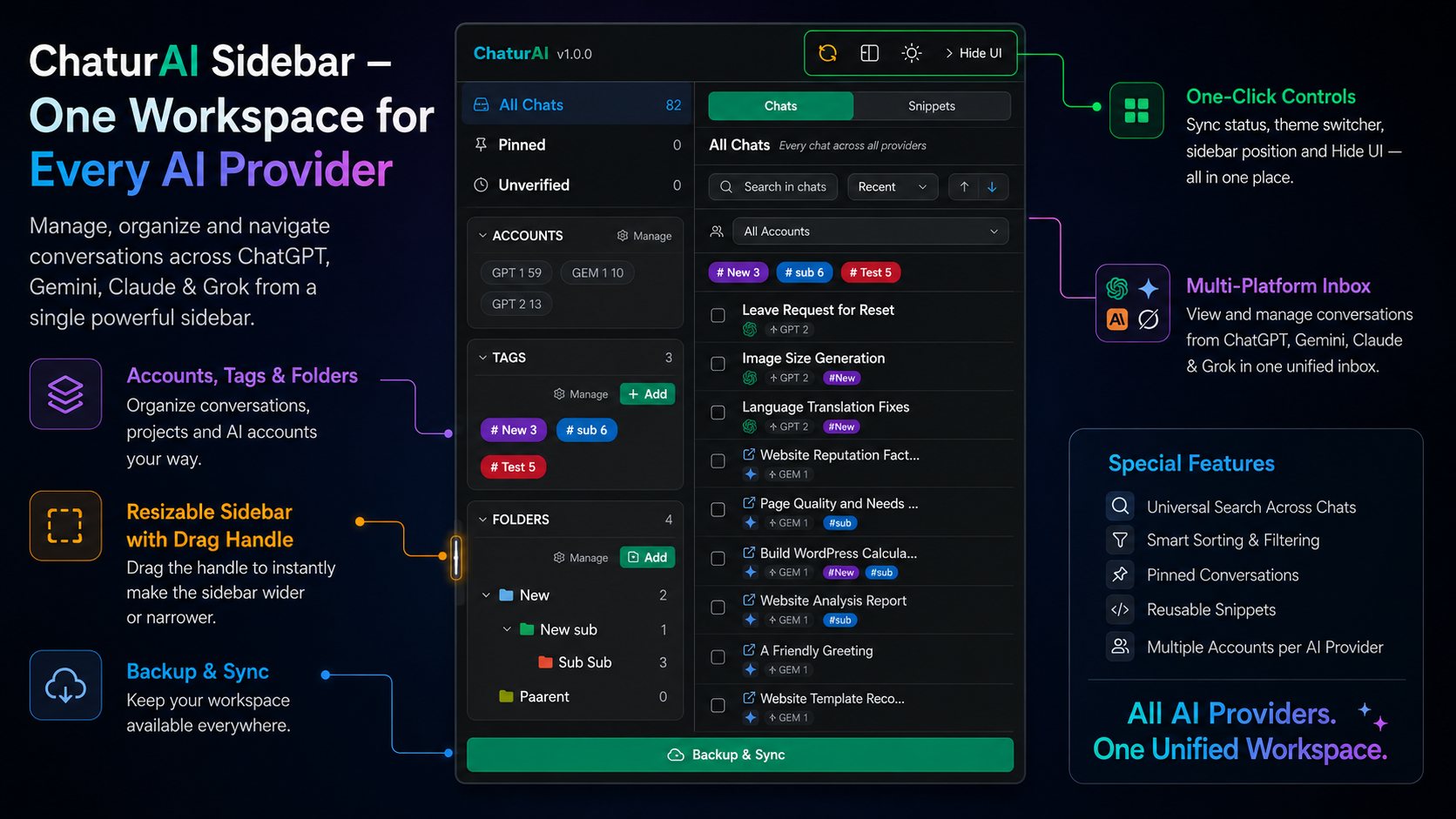
Three weeks ago, ChatGPT wrote you a genuinely great marketing plan. You know it exists. You know roughly when you wrote it. And you have no way to find it again except scrolling — past forty other chats named “Marketing Plan Ideas,” “Untitled,” “New Chat 14” — until you give up or ask the same question again and get a slightly worse answer the second time.
That’s not a you problem. ChatGPT ships a chat history, not a ChatGPT workspace. There’s no folder system, no tags, no way to search Claude and ChatGPT history from one box, no way to export a chat to PDF without copy-pasting it by hand. This post covers what a proper ChatGPT sidebar should actually do, and how Chaturai — a free Chrome extension — adds all of it to ChatGPT, Claude, Gemini, and Grok at once.
Why a Flat ChatGPT History Isn’t Enough
Open your own ChatGPT sidebar and count how many conversations sit there with zero structure — a flat, reverse-chronological list. Fine for the first twenty chats. By chat two hundred, it’s not a history, it’s a haystack. No way to group by project or client. No way to pin the three chats you reopen daily above the noise. And because ChatGPT auto-titles conversations from the first message, half the list tells you nothing about what’s actually inside.
Now multiply that by every AI platform you actually use. Claude for long-form reasoning, ChatGPT for quick questions, Gemini because it’s baked into Google Workspace, Grok for real-time takes — each with its own separate, unstructured history, none of them talking to each other. A project that spans a ChatGPT draft, a Claude research thread, and a Gemini summary has no single place where all three live side by side.
Copying important answers into Notion or a notes app doesn’t fix this — it adds a manual step you’ll forget half the time, and it still leaves the other hundred chats unsorted. What actually closes the gap is folders, tags, and search built into the platforms you’re already using — which is exactly what a ChatGPT workspace extension is for.
What Is a ChatGPT Workspace, Exactly?
A ChatGPT workspace is the organizational layer ChatGPT itself doesn’t ship with: folders to group chats by project, tags to filter across projects, a search bar that actually finds what you’re looking for, and a way to get a conversation out as a real file instead of a wall of copy-pasted text. Chaturai turns your existing ChatGPT sidebar into exactly that — and does the same for Claude, Gemini, and Grok in one place, so you’re not maintaining four separate systems for four separate apps.
It’s not a fifth chat app and it doesn’t require an API key or a separate login. You keep using the real ChatGPT, Claude, Gemini, and Grok exactly as you do now — Chaturai just sits alongside the page. Your conversations never pass through Chaturai’s servers; folders, tags, and snippets live locally in your browser unless you explicitly turn on Cloud Backup.
Why Install It
- You stop losing good answers. A folder structure means a chat from a month ago is still exactly where you left it, not buried under two hundred newer ones.
- You stop re-explaining context. Tags mean you can filter to every “Project Atlas” conversation across all four platforms in one click.
- You stop losing track of long threads. A built-in table of contents turns a 300-message thread into something navigable instead of an endless scroll.
- You stop hitting context limits by surprise. A live token counter shows you exactly how close a conversation is to its limit before it starts forgetting things.
- You stop retyping the same prompts. Slash-command snippets put your best-performing prompts one keystroke away, on every platform.
- You stop manually formatting chats to share them. One click turns any conversation into a clean PDF, Markdown file, or JSON export.
How to Add This ChatGPT Sidebar — Step by Step
Setup takes under a minute and doesn’t require an account first.
- Open the Chaturai listing on the Chrome Web Store and click Add to Chrome.
- Confirm the requested permissions — every one is explained in plain language below, nothing hidden.
- Pin the extension icon to your toolbar so it’s always one click away.
- Open ChatGPT, Claude, Gemini, or Grok. The sidebar appears automatically and reads your existing chat list right away — nothing to import.
- That’s it. You’re already looking at your first organized AI workspace.
What the Permissions Actually Mean
- Storage — saves folders, tags, and snippets locally on your device.
- Active Tab — detects which platform (ChatGPT, Claude, Gemini, or Grok) you have open.
- Scripting — displays the sidebar and runs your prompt snippets.
- Alarms — schedules background cloud backup, and only applies on a Pro plan.
Nothing here reads your prompts or your AI’s responses. Chaturai only works with the chat titles and timestamps already visible in each platform’s own sidebar.
Your First Five Minutes
Create your first folder. Click the folder icon, name it “Client Work” or “Personal Projects,” pick a color. Folders nest three levels deep — Client Work → Acme Co. → Q3 Campaign if you need that much granularity.
Drag one chat into it. Any existing ChatGPT, Claude, Gemini, or Grok conversation drags straight into a folder — nothing gets re-created.
Add a tag. Tag a chat “urgent,” then tag a totally unrelated chat on a different platform “urgent” too. Click the tag and both show up together.
Try the search bar. Type half a remembered word from weeks ago. Fuzzy search will usually still find it.
Export something. Open any chat, click export, pick PDF, Markdown, or JSON. One click, not a copy-paste job.
Every Feature, Explained
Folders — Nested Up to Three Levels
Color-coded, three levels deep — enough for a top-level folder per client, a second level for phases, a third if you genuinely need it. Because folders work identically on ChatGPT, Claude, Gemini, and Grok, one “Client Work” folder can hold a ChatGPT draft and a Claude research thread at once.
Tags for Cross-Platform Filtering
Where folders group by project, tags group by type — “urgent,” “reference,” “needs follow-up.” Tags apply across all four platforms at once, solving what folders can’t: finding every chat on a theme regardless of which AI you used.
Pin & Archive Chats
Pin the handful you reopen constantly so they stay at the top. Archive the rest without deleting them — out of the way, still intact.
Multi-Account Switching
A personal and a work account on ChatGPT, Claude, Gemini, or Grok? Chaturai detects and separates both automatically — no manual login/logout dance.
Search ChatGPT History and Claude History From One Box
The search bar covers ChatGPT history and Claude history together — fuzzy matching finds a remembered phrase even if the wording’s slightly off or out of order.
Chat Map — A Table of Contents for Long Threads
A 200-message debugging session or research thread is genuinely hard to navigate on any platform’s native UI — there’s no way to see the shape of the conversation at a glance. Chat map builds a live, clickable table of contents so you jump straight to the message you need.
Token Counter — See the Context Limit Before You Hit It
A small pill tracks, in real time, how close the current chat is to its context limit, on both ChatGPT and Claude. See it coming and start fresh at the right moment, instead of finding out after the model’s already forgotten something. Drag it anywhere on screen, or switch it off.
Prompt Snippets & Slash Commands
Save a prompt once, trigger it anywhere with a slash command like /summarize — on ChatGPT, Claude, Gemini, or Grok. A lightweight prompt manager without a separate app.
ChatGPT Exporter — One-Click PDF, Markdown & JSON
Turn any ChatGPT or Claude conversation into a clean file with one click: PDF to read or share as-is, Markdown for notes or docs, JSON for the raw structure. Gemini and Grok export is in active development.
Resizable Sidebar & Control Center
Drag the sidebar to whatever width feels right, move it to either side, collapse it to a small arrow. One control center covers light/dark mode, sidebar position, and the token counter toggle.
Cloud Backup (Pro)
Folders, tags, snippets, and pins sync automatically across up to four devices — switching from laptop to desktop doesn’t mean starting over.
Full feature breakdown: Chaturai features.
Who This ChatGPT Workspace Is Built For
Writers juggling multiple drafts and research threads across ChatGPT and Claude, who need folders instead of an ever-growing scroll of untitled chats.
Developers running long debugging sessions who need to know how much context window is left, and who benefit from a table of contents once a thread passes a hundred messages.
Marketers and agencies managing multiple clients, where the same prompts get reused constantly and tags need to separate one client’s work from another’s at a glance.
Researchers and students running the same question through ChatGPT, Claude, Gemini, and Grok at once, who need one search bar across all four instead of four separate ones.
Anyone with a personal and a work account who’s tired of logging in and out to switch between them.
Chaturai vs. Other AI Chat Organizer Extensions
The all in one AI extension category splits into a few types worth knowing about before you pick one:
Single-platform folder extensions add folders to ChatGPT and nothing else. Fine if you only use ChatGPT; you need a separate tool per platform the moment you don’t.
Multi-AI sidebars without real organization — the “chat with every model from one panel” category — let you compare model outputs but don’t organize your existing history. No folders, no tags, no export. Different problem, not this one.
Extensions that require an API key or route chats externally. Some ask you to connect an API key or send conversation content through a third-party server just to power search or export. Chaturai needs neither for its core features, and conversations stay local unless you turn on Cloud Backup.
What sets Chaturai apart as a ChatGPT manager and multi AI sidebar in one:
- One tool, four platforms — folders, tags, search, chat map, and the token counter work identically on ChatGPT, Claude, Gemini, and Grok.
- No API key required — every core feature works out of the box.
- Local-first by default — nothing leaves your browser unless you opt into Cloud Backup.
- A token counter and a chat map together — most organizer extensions offer one or the other, if either.
- A genuinely usable free tier — real folders, tags, and snippets, not a locked demo.
Free vs Pro
| Free — forever | Pro — monthly or yearly | |
|---|---|---|
| Accounts per platform | 1 | 2 |
| Folders, tags, snippets | 5 each | Unlimited |
| Storage | Local only | Cloud backup across up to 4 devices |
| Chat map | Preview (last 10 messages) | Full, with jump-to-section |
| Exports | 10 PDF exports/month (ChatGPT & Claude) | Unlimited, watermark-free — PDF, Markdown, or JSON |
| Support | Community | Priority support |
Both plans include a money-back guarantee — 7 days on monthly, 30 days on yearly. Full details: Chaturai pricing.
Real-World Scenarios
The freelance writer keeps a “Clients” folder with a sub-folder per client, tags anything needing revision “follow-up,” and exports final drafts straight to PDF.
The solo developer runs long architecture and debugging conversations on Claude, watches the token counter to know when to start fresh, and uses chat map to jump back to a decision made two hundred messages earlier.
The agency marketer manages five clients across ChatGPT and Gemini, tags every chat by client name, and reuses the same five prompt snippets instead of retyping briefs from scratch.
The research student runs the same question through ChatGPT, Claude, and Grok, keeps all three in one tagged folder per topic, and uses the shared search bar to find any of them later.
Your Privacy, Explained Plainly
Chaturai never reads your prompts or your AI’s responses — it only works with the chat titles and timestamps already visible in each platform’s native sidebar. Folders, tags, and snippets stay on your device unless you explicitly turn on Cloud Backup, and even then only your organizational data — not conversation content — gets backed up.
Tips for Getting the Most Out of It
- Build your folder structure before you need it. A few minutes setting up “Client Work,” “Personal,” and “Research” up front saves far more time than organizing after the fact.
- Use tags for anything that crosses folders. If a chat could belong to two folders, that’s what a tag is for.
- Save your best prompts as snippets immediately — don’t wait until you’ve retyped one five times.
- Check the token counter before a long session, not during it.
- Pin the folders you touch daily, not just individual chats.
Related Reading
- ChatGPT Folders, Token Counter & PDF Export: Every Question Answered
- Why ChatGPT and Claude Forget Things Mid-Conversation
- How to Build a ChatGPT Prompt Library You’ll Actually Reuse
- Gemini Folders & Grok Folders: Organizing Google Gemini and Grok Chats
Conclusion
ChatGPT, Claude, Gemini, and Grok are excellent at answering questions. None of them help you find, organize, or hold onto the answers you’ve already gotten. Chaturai closes that gap with one ChatGPT sidebar that works the same way across all four: folders and tags to organize, search to find, chat map and a token counter to navigate long threads, prompt snippets to stop retyping yourself, and a one-click exporter to turn any conversation into a file worth keeping. Add Chaturai to Chrome and build your first folder.
Frequently Asked Questions
What is a ChatGPT workspace? The organizational layer ChatGPT doesn’t ship with — folders, tags, search, and export. Chaturai adds it as a sidebar on top of ChatGPT, Claude, Gemini, and Grok.
How do I add folders to ChatGPT? Install Chaturai, open the sidebar on chatgpt.com, click the folder icon, and drag any chat in. Folders nest up to three levels deep.
Can I export ChatGPT to PDF for free? Yes — 10 free PDF exports a month for ChatGPT and Claude. Pro removes the limit and adds Markdown and JSON. See Free vs Pro above.
Does this work with Claude, Gemini, and Grok, or just ChatGPT? All four. Folders, tags, search, chat map, and the token counter work identically across ChatGPT, Claude, Gemini, and Grok.
Is there a ChatGPT token counter? Yes — a live pill tracks context window usage in real time on both ChatGPT and Claude.
Is there an all-in-one AI extension for ChatGPT, Claude, Gemini, and Grok? Yes — that’s what Chaturai is. One sidebar, one set of folders/tags/search, working identically across all four instead of a separate tool per platform.
Do I need to create an account to use it? No. Folders, tags, snippets, search, and export all work immediately after installing. An account is only needed for Cloud Backup.